Storage types
Gcore Object Storage is available in two performance tiers:| Type | Best for | Performance |
|---|---|---|
| S3 Fast | AI/ML training datasets, embeddings, IoT telemetry, small-file workloads | 5-6 ms TTFB, up to 27x faster on small files |
| S3 Standard | General-purpose storage, backups, content delivery | 200+ ms TTFB |
S3 Fast performance
S3 Fast delivers consistent, high-throughput performance optimized for small-file and latency-sensitive workloads:- Small files: Up to 27x faster throughput (~1,350 objects/second) compared to Standard
- Mixed workloads: 2.2x faster than Standard
- Large files: 1.9x faster than Standard (advantage depends on client proximity)
S3 Fast storage is available in Sines-2, Sines-3 (Portugal), and London-2 (UK). These locations are co-located with Gcore GPU infrastructure, making them ideal for AI/ML pipelines.
Create a storage
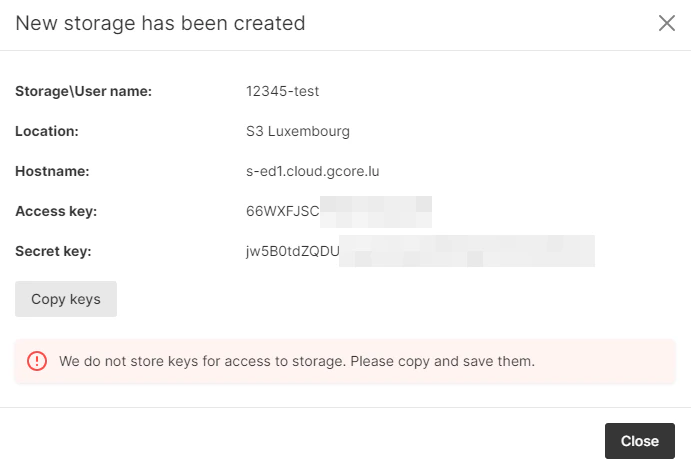
To create a storage:- In the Gcore Customer Portal, navigate to Object Storage and click Add new object storage.
- Enter a storage name.
- Select a location. The location determines the storage type (Fast or Standard) and the data center region.
- Click Create.
Object storage limits
Object Storage has the following limits:- Maximum 1000 buckets per storage
- Maximum 10 million objects per bucket (for optimal performance, keep under 100K objects per bucket and distribute across multiple buckets)
SFTP
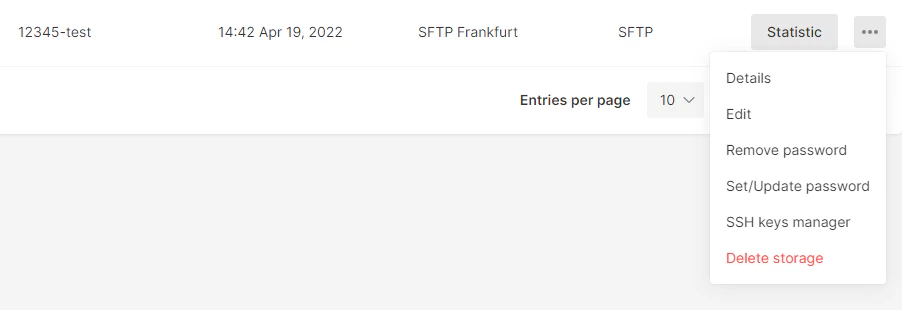
To create an SFTP storage, specify name, location, and preferred authentication method: SSH key or password. Once the storage is created, you will be able to use both.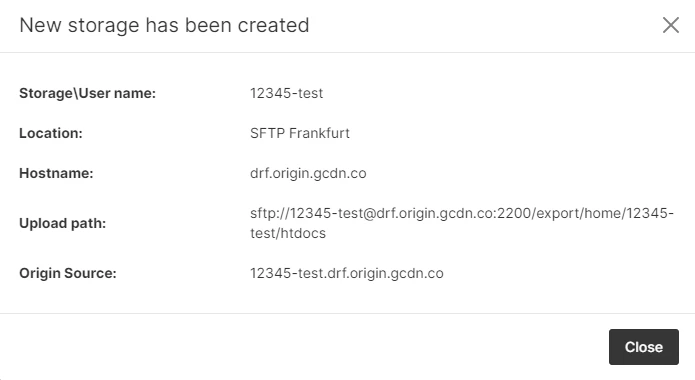
< server_name>.<host>. For example, if your server name is 12345-test, and it is located in Amsterdam, the record would look like CNAME 12345-test.ams.origin.gcdn.co.
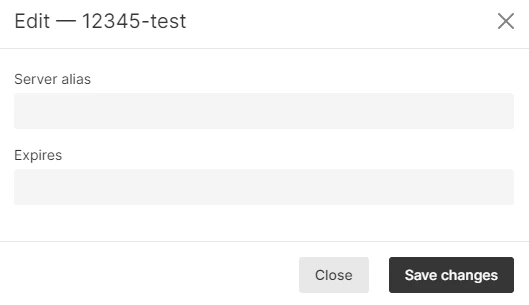
Expires header can be modified via the “Expires” field. The default value is a year.